Apps in ChatGPT
Connect ChatGPT to the tools you use every day like Slack, SharePoint, Airtable, Google Drive and more. Complete tasks, bring in context, and get more done—right in the conversation.
Select apps available in all plans.

Do more in ChatGPT with apps
Take action across your tools
Use select apps to complete tasks—like running workflows in Jira, creating charts in Figma, or enriching a lead in Clay—all within ChatGPT.
Work with the right context
Apps pull in live details across your CRM, codebase, documents, and analytics tools so ChatGPT can answer with accurate, up-to-date information.
Stay in control of your workspace
Admins decide which apps are available, who can use them, and what actions they can take—all with clear permissions and visibility into how apps access data.
See it in action
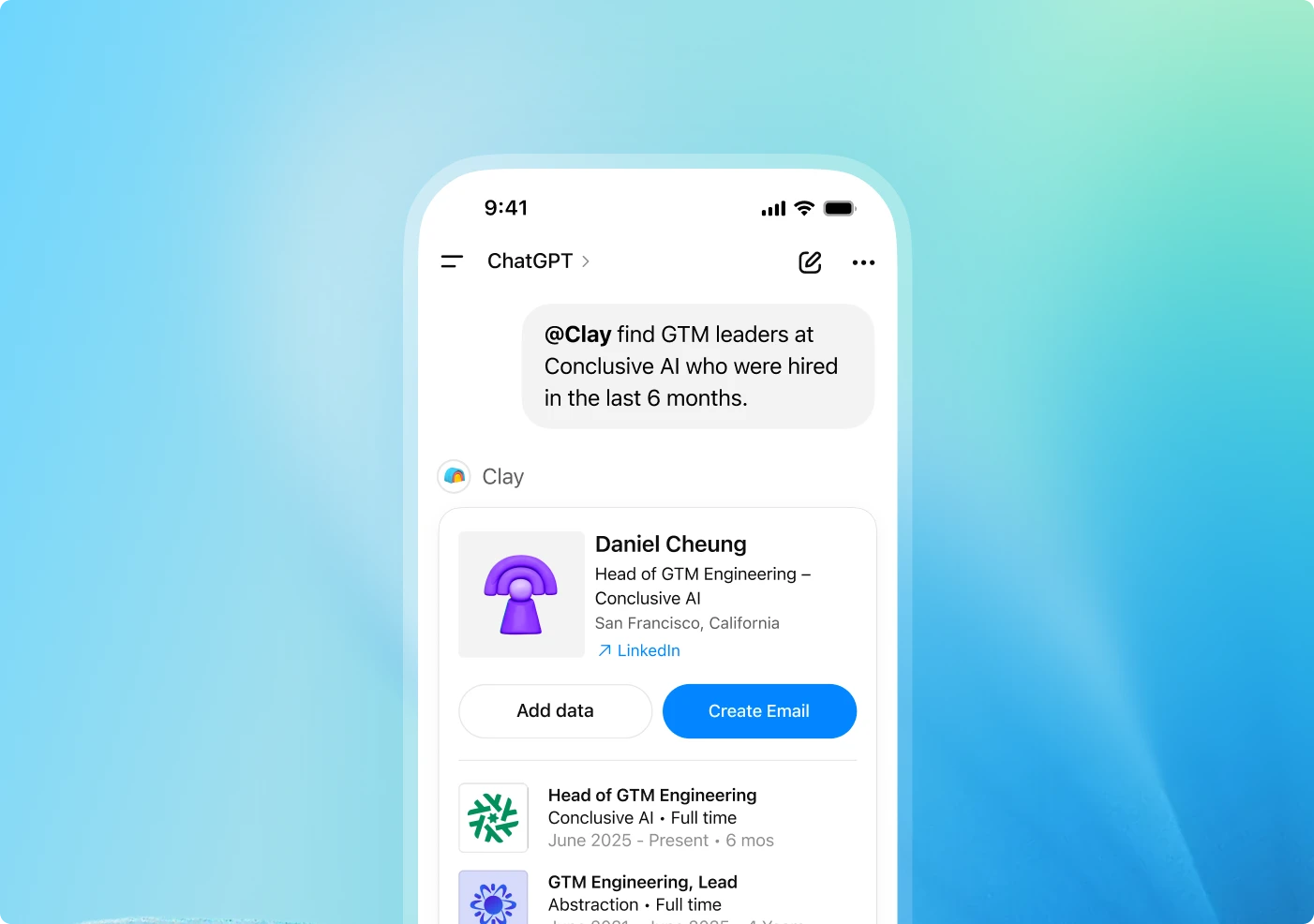
How it works
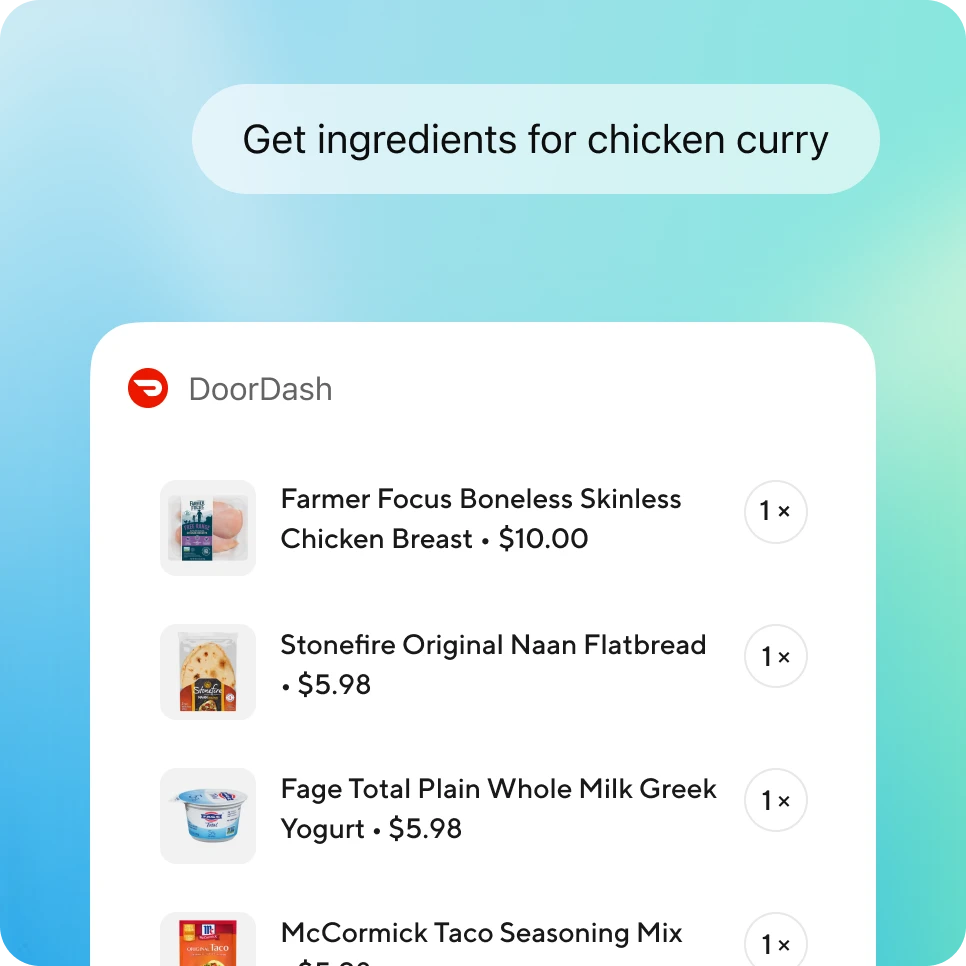
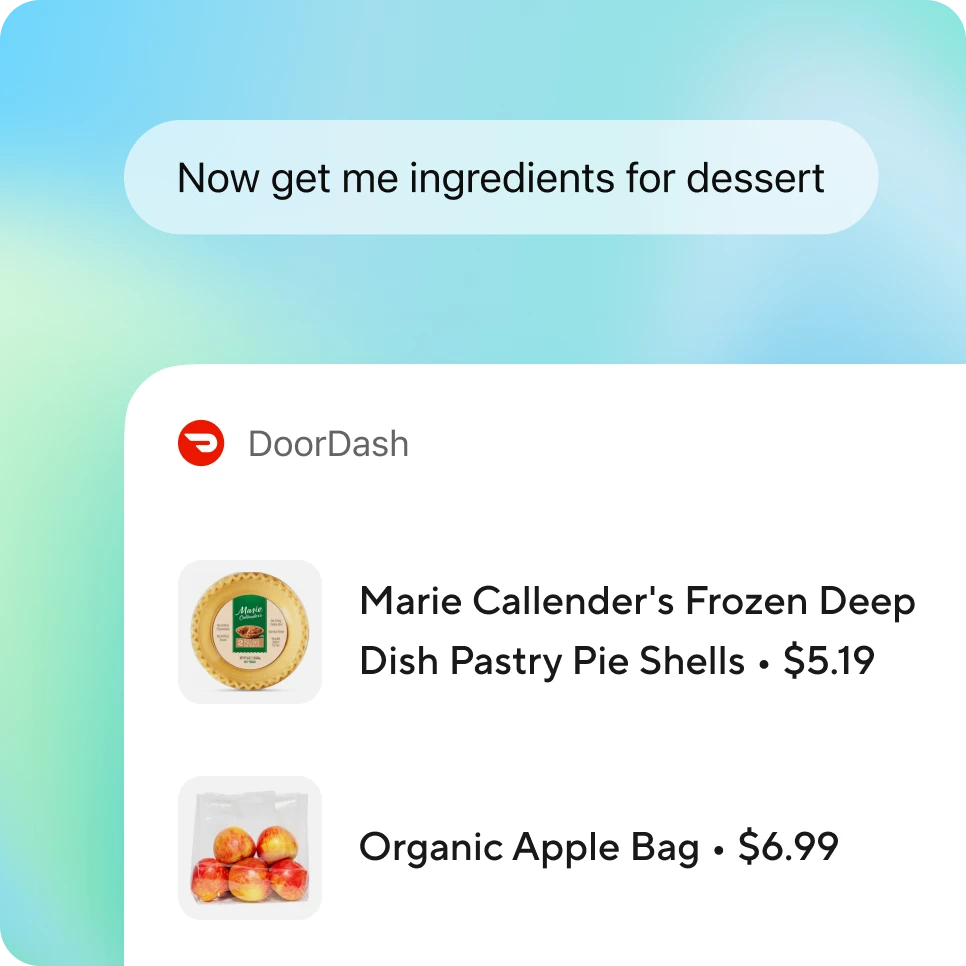
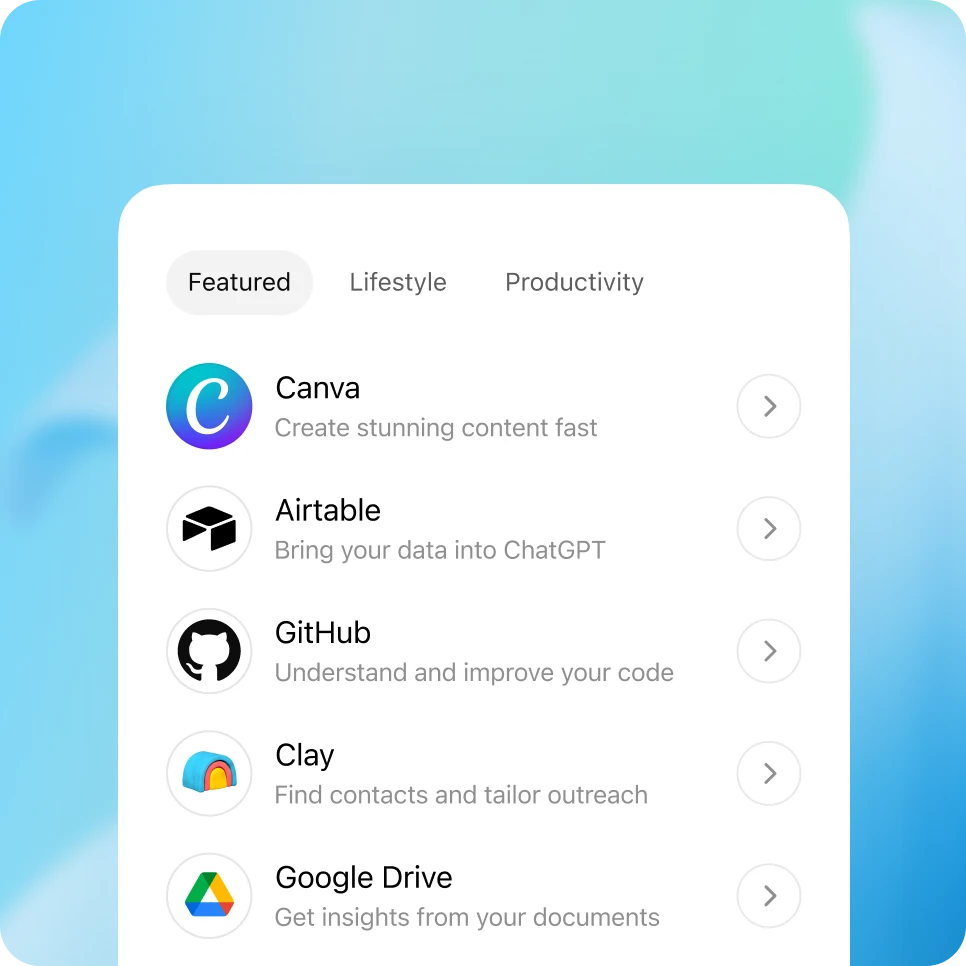
Go to your ChatGPT sidebar or visit chatgpt.com/apps to browse and add apps. On Enterprise and Edu workspaces, administrators must first enable apps in Workspace settings before users can connect them.
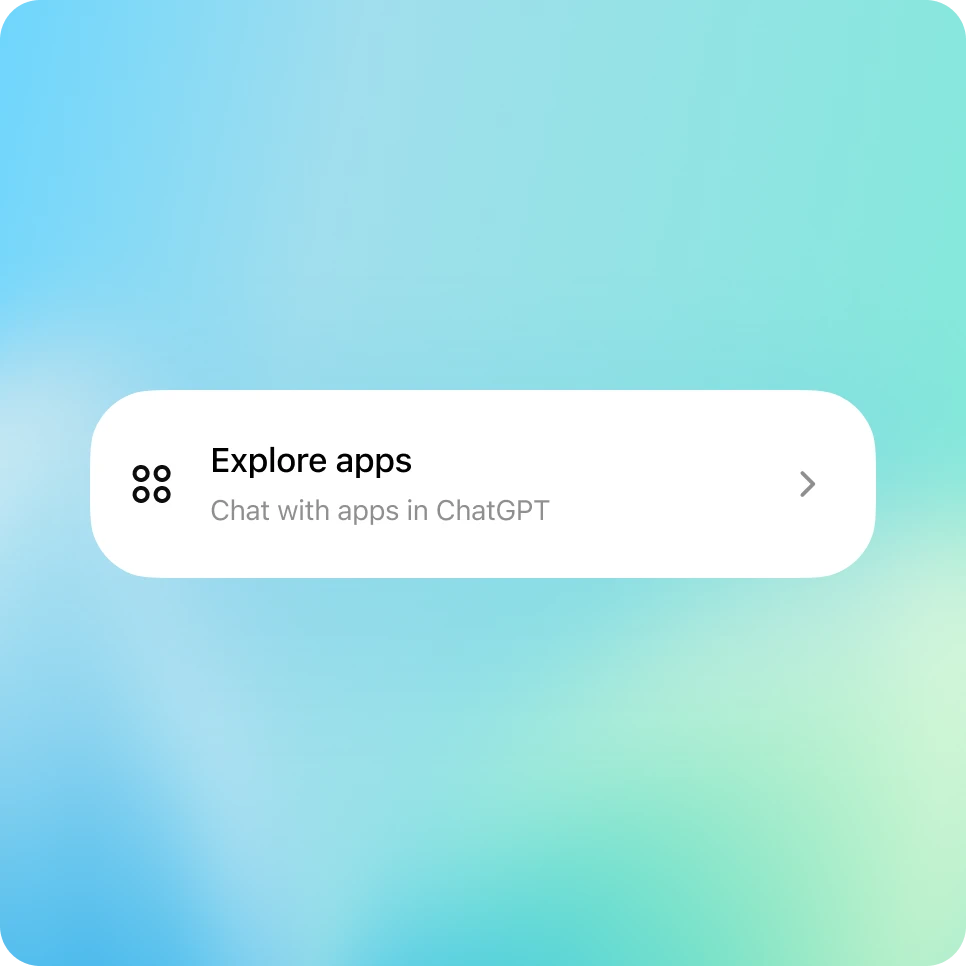
Discover more apps in ChatGPT
Explore a growing directory of apps for work, creativity, research, and everyday tasks. New apps are added regularly, and your company can add its own—expanding what’s possible in ChatGPT.

Security and controls
Apps are designed to give administrators clear oversight and control across their workspace:
Workspace permissions: Enterprise and Edu administrators can decide which apps are available and who can use them with role-based controls. Easily enable or disable specific apps across your workspace.
Transparent capabilities: Every app discloses the types of data it can access, the actions it can take, and who built it. When connecting an app, users review these permissions before anything is shared.
Audit logs: Track usage and activity through the Compliance Logs Platform—including tool calls, files accessed, and relevant conversation context—for monitoring and review.
Data privacy: ChatGPT only accesses information the user can already see in the connected app. For ChatGPT Business, Enterprise, Edu, and ChatGPT for Teachers, none of this data is used to train models by default. Plus and Pro users can manage data-use preferences in their settings.
Frequently asked questions
Add approved apps from the directory in your sidebar. Once added, select an app from the Tools menu or type “@” followed by the app name in chat (for example: “@Airtable, pull next steps from my meetings this week”).