Use ChatGPT with presentations
Get help with every part of your presentation—whether you’re summarizing slides or improving design. Simply upload any deck to ChatGPT to ask questions, get insights, or build a new one from scratch.
A partner for creating presentations
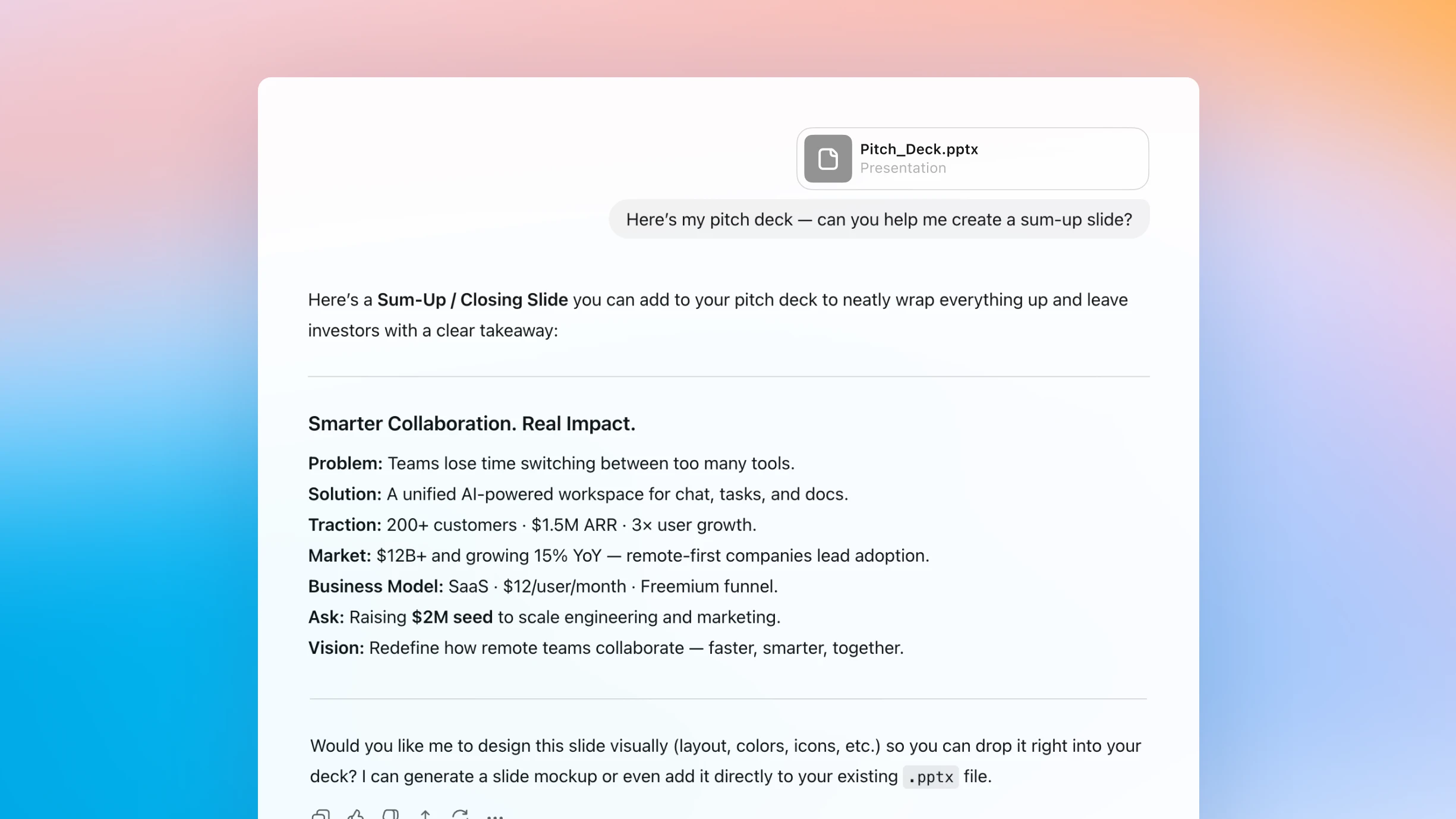
Simplify complex content
Upload a presentation to ChatGPT to summarize slides, surface key takeaways, and clarify advanced ideas, just by chatting.
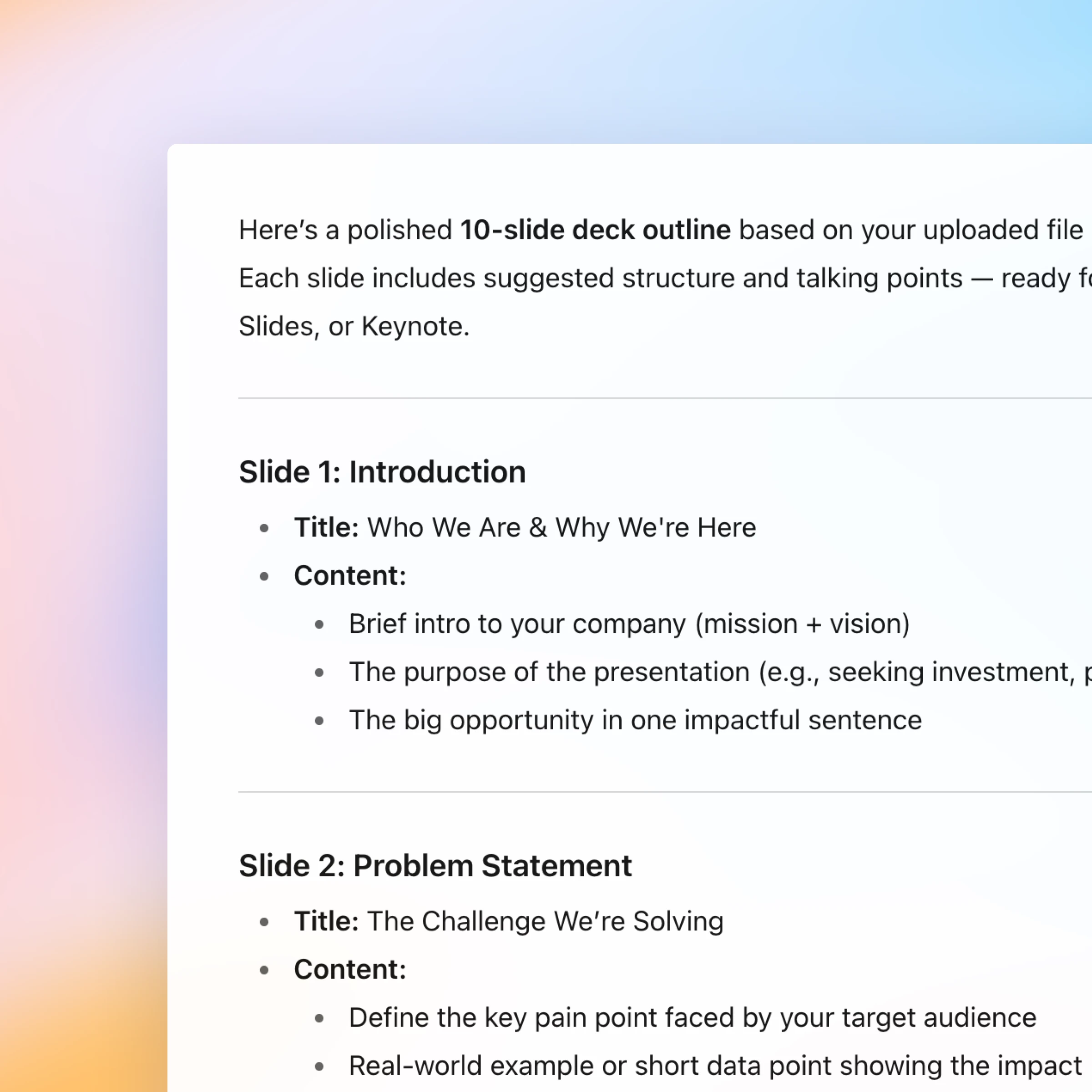
From rough draft to polished story
Start with an outline and use ChatGPT to help shape your message, organize your thoughts, and turn them into polished slides.
Have a natural conversation
Ask, refine, and iterate naturally. Every step of creating or understanding a presentation happens in one continuous, easy conversation.
New: Canva in ChatGPT
You can now create, preview, and edit Canva designs in ChatGPT, without leaving the conversation. Just mention “Canva” in your chat.
How it works
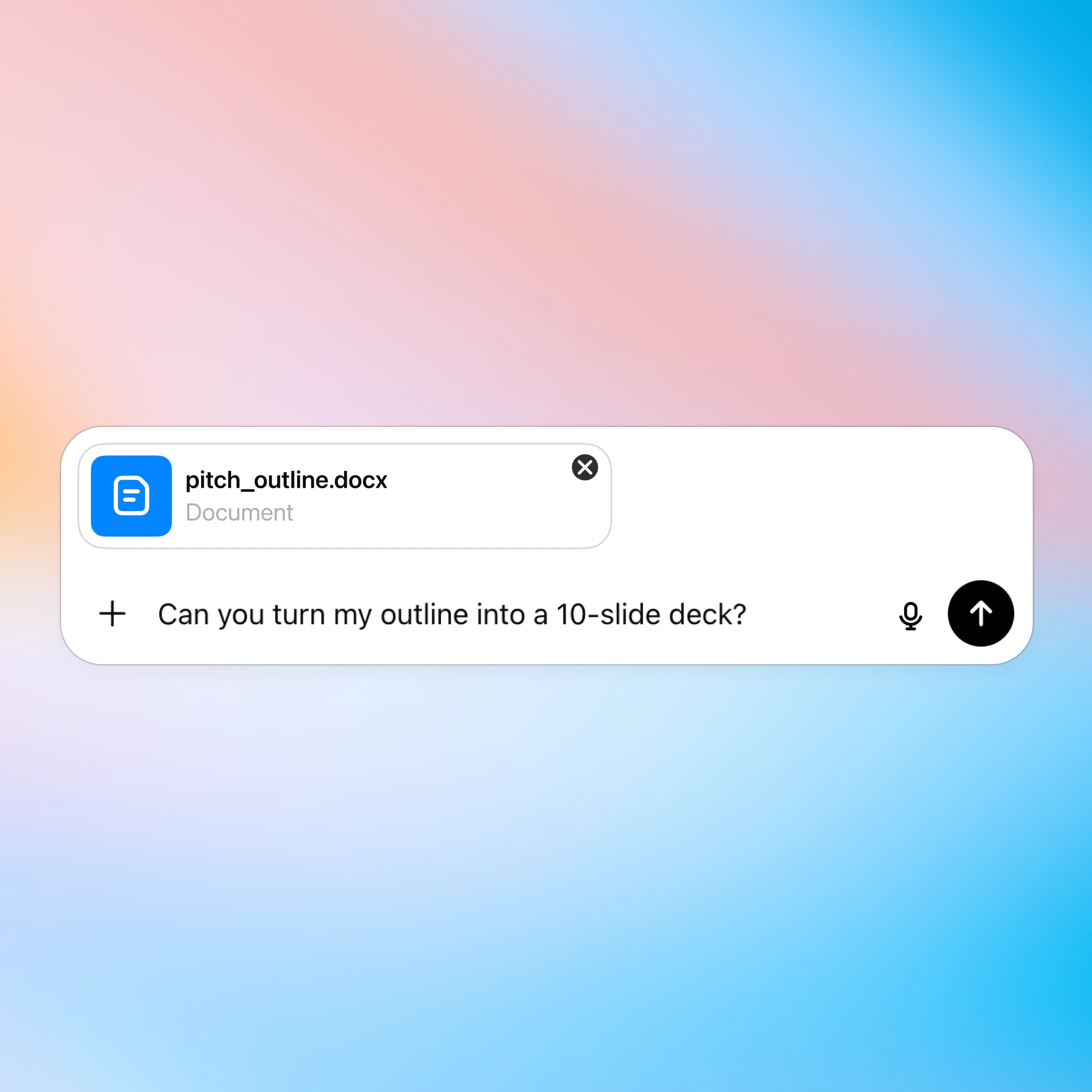
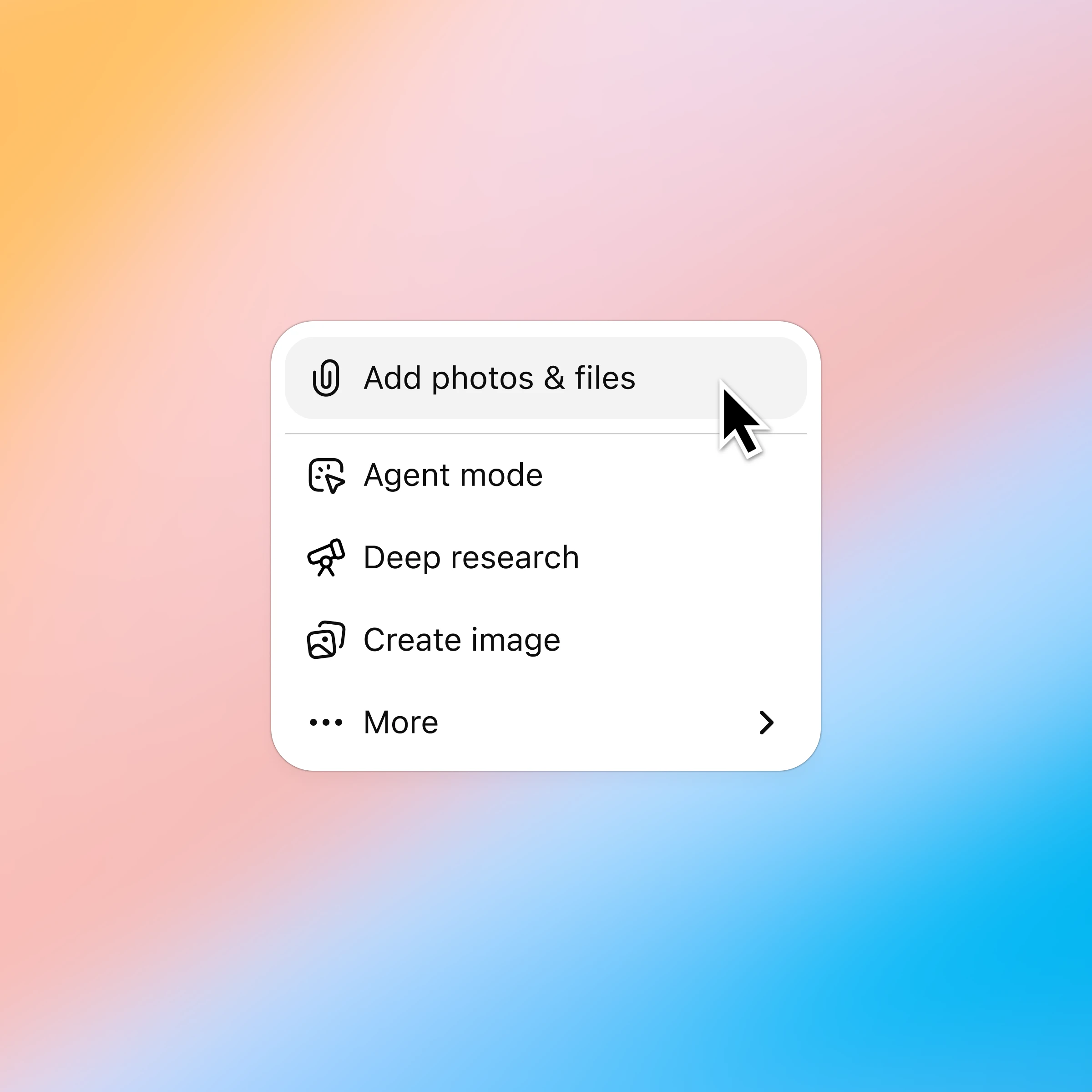
Click the ‘+’ and select ‘Add photos & files’ and choose the presentation you want to discuss. Plus and Pro customers can connect to Google Drive and Microsoft Teams to pull in existing files. Learn more.
More ways to chat with presentations
Daugiau būdų naudoti „ChatGPT“
- Pokalbis su skaičiuoklėmis
Greičiau supraskite duomenis, užtikrintai taisykite formules ir paverskite neapdorotus skaičius aiškiomis įžvalgomis bei šablonais.
- Pokalbis su PDF
Įkelkite PDF failus į „ChatGPT“ ir gaukite pagalbą analizuojant bei apibendrinant didelius dokumentus, kad greitai gautumėte reikiamą informaciją.
- Naršykite internete su „Atlas“
Naudokite „Atlas“, mūsų DI pagrįstą naršyklę, kad apibendrintumėte puslapius, palygintumėte produktus, analizuotumėte informaciją ar atliktumėte veiksmus internete.